Ultimate Password Toolkit on takmasaleh.com (Generator, Analyzer, Manager & Security Tools)
This guide explains how to use the Ultimate Password Toolkit on takmasaleh.com in a practical, user-first way. You’ll learn how to generate strong passwords, analyze their strength, organize saved credentials, and use extra security utilities (encryption and hashing) — all with clear steps and screenshots.
Table of Contents
- What the Ultimate Password Toolkit is (and when to use it)
- Generator: Create strong passwords & passphrases
- Strength Settings: Length, character types, exclusions
- Advanced Options: Custom character set & generation method
- Analyzer: Check strength, entropy, and hashes
- Manager: Save, search, export, import, backup
- Security Tools: Text encryption & hash generator
- Password Audit: Check if saved passwords may be compromised
- Best practices: Password rules that actually matter
- Troubleshooting & common questions
- Privacy & safety notes
Images used in this article are stored in your website root folder: 1.png to 9.png.
1) What the Ultimate Password Toolkit Is (and When to Use It)
Passwords are still the most common way people log in, even in 2026. The problem is not that passwords exist — it’s that humans are predictable. We reuse passwords, choose short ones, and pick patterns that feel “memorable” but are easy for attackers to guess. The Ultimate Password Toolkit on takmasaleh.com is designed to solve the practical side of that problem by giving you four connected sections:
- Generator: Create strong random passwords or passphrases with control over length and character rules.
- Analyzer: Measure strength and complexity (length, composition, estimated entropy) and view hashes.
- Manager: Save credentials, search them, copy quickly, and use export/import/backup options.
- Security Tools: Extra utilities like text encryption/decryption and a hash generator.
Think of it as a “mini security workbench” for everyday users and website owners. Whether you’re creating a new email password, a WordPress admin password, an API token-like password for a tool, or simply cleaning up old reused passwords, this toolkit makes the workflow smoother:
- Generate a strong password that fits the rules of the website/app.
- Analyze it to confirm it’s actually strong (not just “looks random”).
- Save it in the Manager so you don’t reuse weak passwords.
- Use security tools when you need hashing or simple encryption tasks.
2) Generator: Create Strong Passwords & Passphrases
The Generator tab is where most users start. The interface gives you a generated password at the top, plus a set of buttons that make everyday actions easy: copy, refresh, export, and passphrase creation.
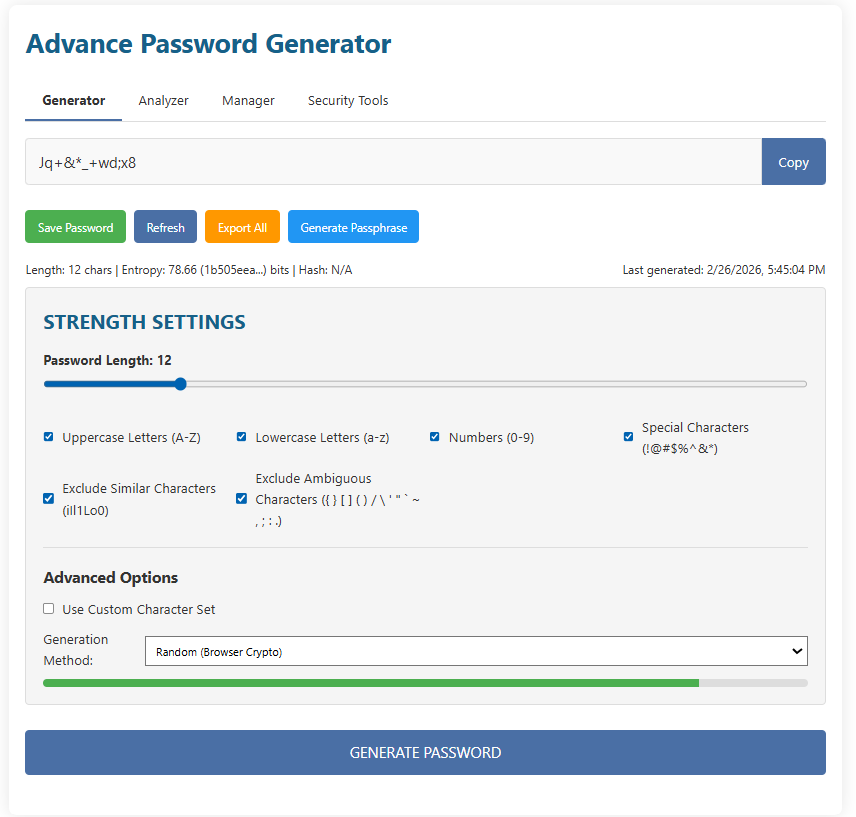
2.1 Understanding the top area (password field + Copy)
At the very top you’ll see a text field containing the current generated password. On the right there is a Copy button. This button is your “fastest path” to using a password. The safe workflow is:
- Generate the password (or refresh it).
- Click Copy.
- Paste it into the website/app that needs the password.
- Save it (in a password manager — and in this toolkit’s Manager if you use it for quick access).
2.2 Save Password, Refresh, Export All, Generate Passphrase
Under the password field, the Generator interface includes four buttons that match real user needs:
- Save Password: Sends the current password into the Manager workflow so you can store it with a label and username/email.
- Refresh: Creates a new password with the same rules (length and character settings).
- Export All: Exports saved passwords (useful if you want a backup or to move data).
- Generate Passphrase: Generates a phrase-style password (usually easier to remember and often very strong when long).
You’ll also notice a small line of stats near the top area (for example: length, entropy, and hash availability), plus a “Last generated” timestamp. These details are helpful when you’re iterating — for instance, you might test a few generated passwords until you get one that fits a site’s “password policy” rules.
3) Strength Settings: Length, Character Types, and Exclusions
The most important setting for password security is length. The toolkit makes length easy to control using a slider inside the Strength Settings panel. You also get checkboxes to include or exclude specific character types (uppercase, lowercase, numbers, special characters), plus options to avoid confusing characters.
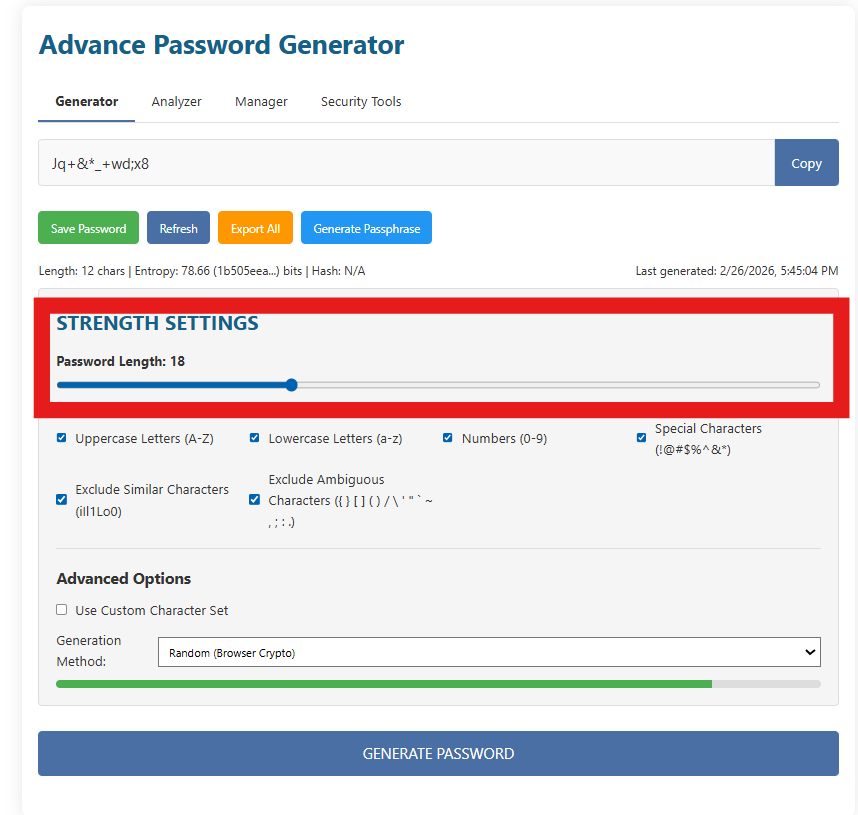
3.1 Password length: why it matters (practically)
If you only change one thing, change the length. Length increases the number of possible combinations dramatically. In the real world, attackers often use automated guessing (brute force, dictionary attacks, leaked-password lists). A longer password gives those attacks far less chance of success — especially when the password is random.
3.2 Character types: when to include what
Strength Settings includes these character-type options:
- Uppercase letters (A–Z)
- Lowercase letters (a–z)
- Numbers (0–9)
- Special characters (symbols like
!@#$%^&*etc.)
Many websites require a “mix” of types. However, if a website supports long passwords, a long passphrase can be extremely strong even with fewer character classes. The best approach depends on the password rules:
The website forces complexity rules, you want maximum randomness, or you’re generating a password for an admin-level account.
You need something memorable, typing is frequent (mobile), or the site rejects some symbols.
3.3 Exclude Similar and Exclude Ambiguous characters
Two checkboxes in the Strength Settings area help prevent frustrating mistakes:
- Exclude Similar Characters (examples shown:
i l 1 L o O 0) - Exclude Ambiguous Characters (characters that can break copy/paste or be misread in some fonts)
These options are extremely useful when you must manually type a password (for example, typing a Wi-Fi password on a TV, or entering a password into a device with a remote control). Similar-looking characters are a classic cause of “I’m sure the password is correct” login failures.
3.4 The “Generate Password” button
At the bottom of the Generator tab, you’ll see a large GENERATE PASSWORD button. Use it after adjusting settings to create a password that follows your updated rules. If you’re experimenting, you can also use Refresh to quickly iterate.
4) Advanced Options: Custom Character Set & Generation Method
Some websites have strict rules that are annoying in real life. For example:
- “Only these symbols are allowed:
@and_.” - “No spaces allowed.”
- “Password must start with a letter.”
- “Certain characters are blocked.”
That’s why the Generator includes Advanced Options with a custom character set and a selectable generation method.
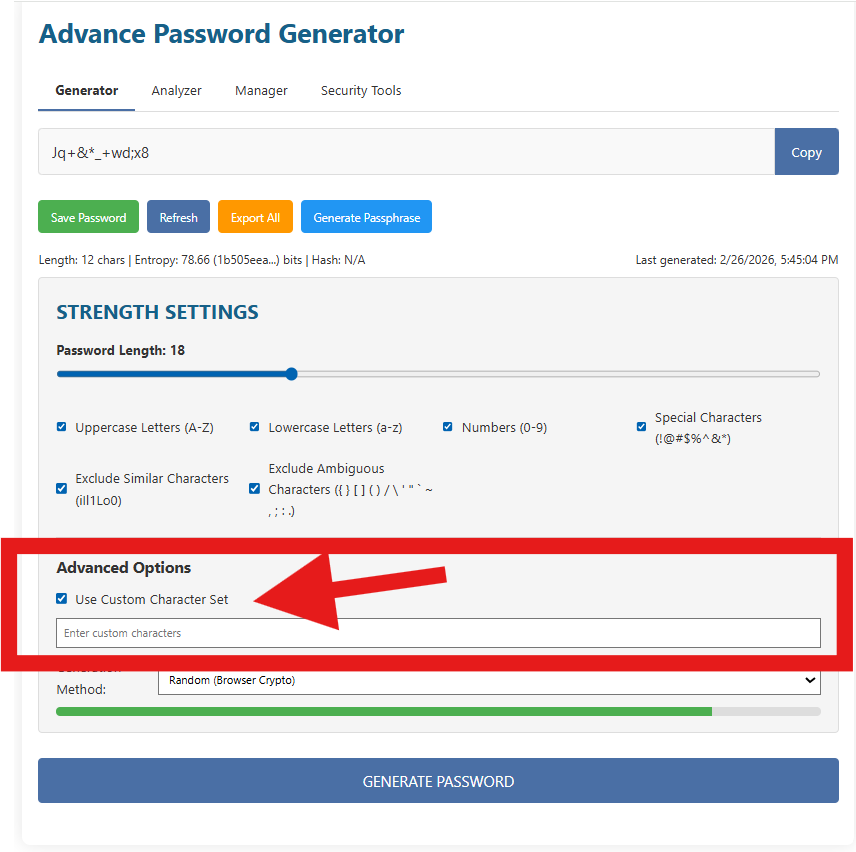
4.1 Use Custom Character Set
When you enable Use Custom Character Set, a text field appears where you can type the exact characters you want the generator to use. This is incredibly practical. You can:
- Allow only characters accepted by a specific website.
- Create “easy to type” passwords for devices (only lowercase + numbers, for example).
- Remove characters that cause login issues in certain systems.
Example custom sets
Only letters and numbers:
abcdefghijklmnopqrstuvwxyzABCDEFGHIJKLMNOPQRSTUVWXYZ0123456789

Lowercase + numbers (easy typing):
abcdefghijklmnopqrstuvwxyz0123456789

Website only accepts these symbols:
abcdefghijklmnopqrstuvwxyzABCDEFGHIJKLMNOPQRSTUVWXYZ0123456789@_-
4.2 Generation Method (Random / Browser Crypto)
The Generator includes a Generation Method dropdown. In your screenshots it shows something like Random (Browser Crypto). This matters because good password generation should use a cryptographically secure random number source (not a predictable one).
“Browser Crypto” typically refers to secure randomness provided by modern browsers (commonly used for generating secure tokens). In simple words: it’s designed to be unpredictable enough for security-sensitive uses.
5) Analyzer: Check Strength, Entropy, and Hashes
Generating a password is step one. Step two is verifying it’s actually strong and meets your needs. That’s what the Analyzer tab does. It lets you paste any password and run an analysis that includes statistics (length and character composition), an “estimated entropy” score, and additional outputs like hashes.
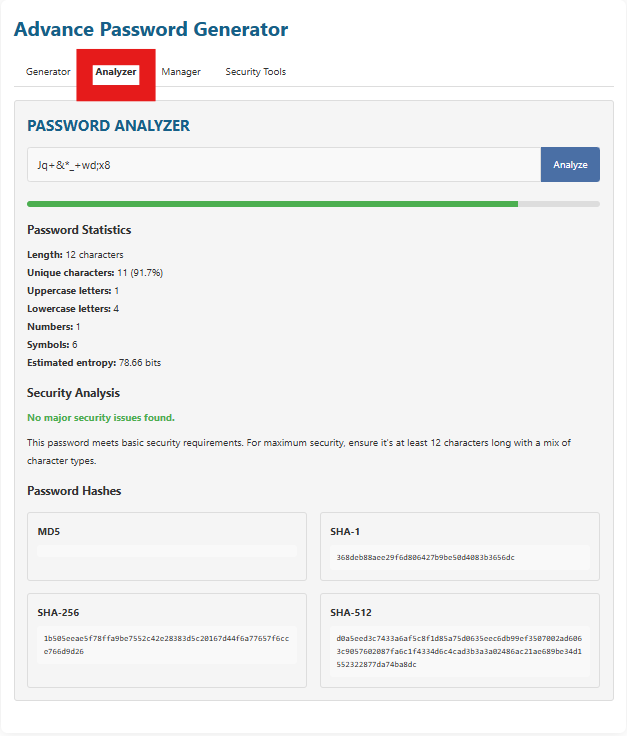
5.1 How to analyze a password (step-by-step)
- Open the Analyzer tab from the top navigation (Generator / Analyzer / Manager / Security Tools).
- Paste your password into the Analyzer input field.
- Click Analyze.
- Read the results in the sections below: Password Statistics, Security Analysis, and Password Hashes.
5.2 Password Statistics: what each metric means
The Analyzer shows a set of metrics that help you understand how “guessable” a password might be:
- Length: Total characters. Bigger is almost always better.
- Unique characters: How many different characters are used (helps reduce patterns).
- Uppercase / lowercase / numbers / symbols: Composition breakdown.
- Estimated entropy: A simplified estimate of unpredictability (higher is better).
In the screenshots, the Analyzer shows an example password with: 12 characters and an estimated entropy around 78.66 bits. That’s a strong signal for many everyday uses — but for highly sensitive accounts you should still prefer longer passwords (16–20+) when possible.
5.3 Security Analysis: reading the message correctly
The Analyzer includes a short “Security Analysis” message. In your example it says something like No major security issues found. That usually means:
- The password meets basic length and complexity requirements.
- It includes a mix of character types (or otherwise appears sufficiently random).
- No obvious patterns were detected (like repeating characters or extremely simple sequences).
But always keep this in mind: no analyzer can guarantee a password is safe if it has already been leaked in a data breach or if it’s being reused across accounts. That’s why this toolkit also includes a Password Audit feature.
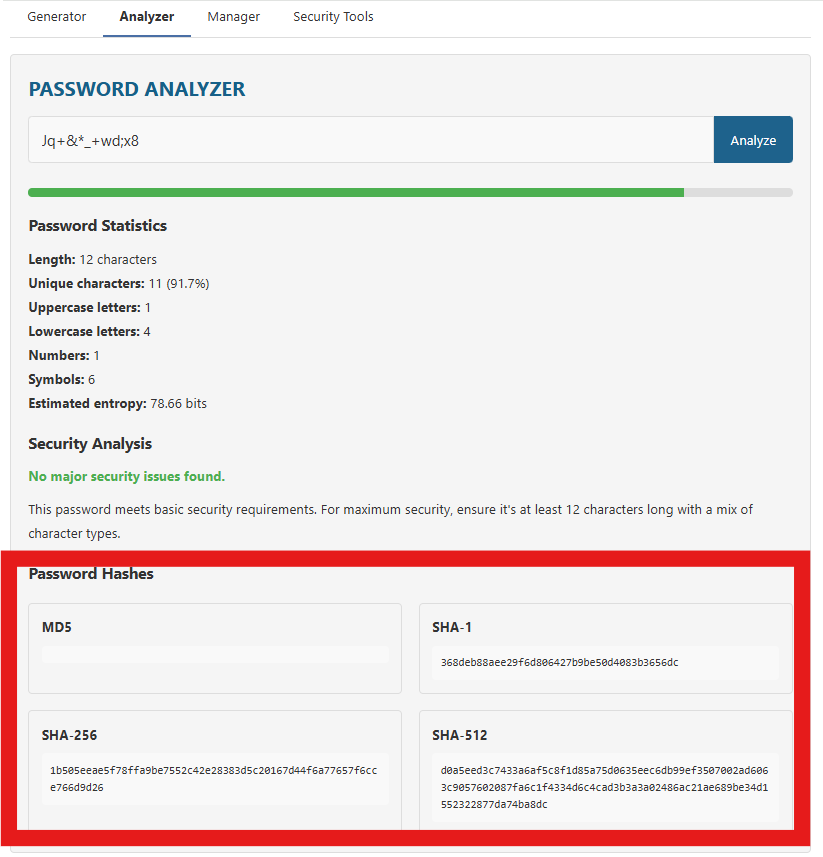
5.4 Password Hashes: what they are (and what they’re not)
Hashes can be confusing, so let’s make it simple:
- A hash is a one-way transformation of input into a fixed-length output (called a digest).
- “One-way” means you can’t reliably reverse the hash to get the original text.
- Different algorithms produce different digests (MD5, SHA-1, SHA-256, SHA-512).
So why show password hashes? Because sometimes users need hashes for development and verification tasks. For example, you might be comparing a SHA-256 value in a script, verifying integrity, or learning how hashing works. However, do not use weak hashing algorithms (like MD5 or SHA-1) for password storage in real systems. Modern password storage uses dedicated password hashing functions (like bcrypt/argon2/scrypt) with salts.
6) Manager: Save, Search, Export, Import, Backup
The Manager tab is where your generated passwords become organized. Instead of leaving passwords in random notes or reusing them (which is dangerous), you can store them with labels, usernames/emails, and quickly search and copy when needed.
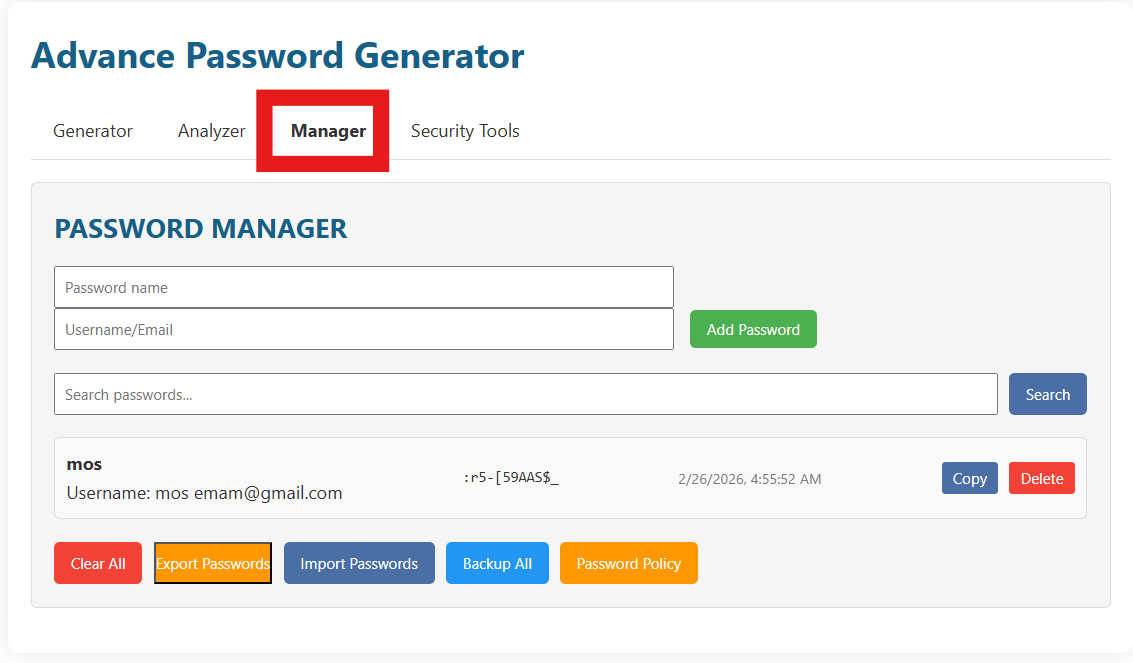
6.1 Adding a password entry
The Manager includes two main fields at the top:
- Password name: A label to help you recognize what the password is for (example: “Gmail”, “WordPress Admin”, “Hosting Panel”).
- Username/Email: The login identifier used for that account.
Once those are filled, click Add Password. In your screenshots, the button is clearly placed on the right. If you used the Generator, you can typically save the generated value into the Manager so you don’t have to copy it manually.
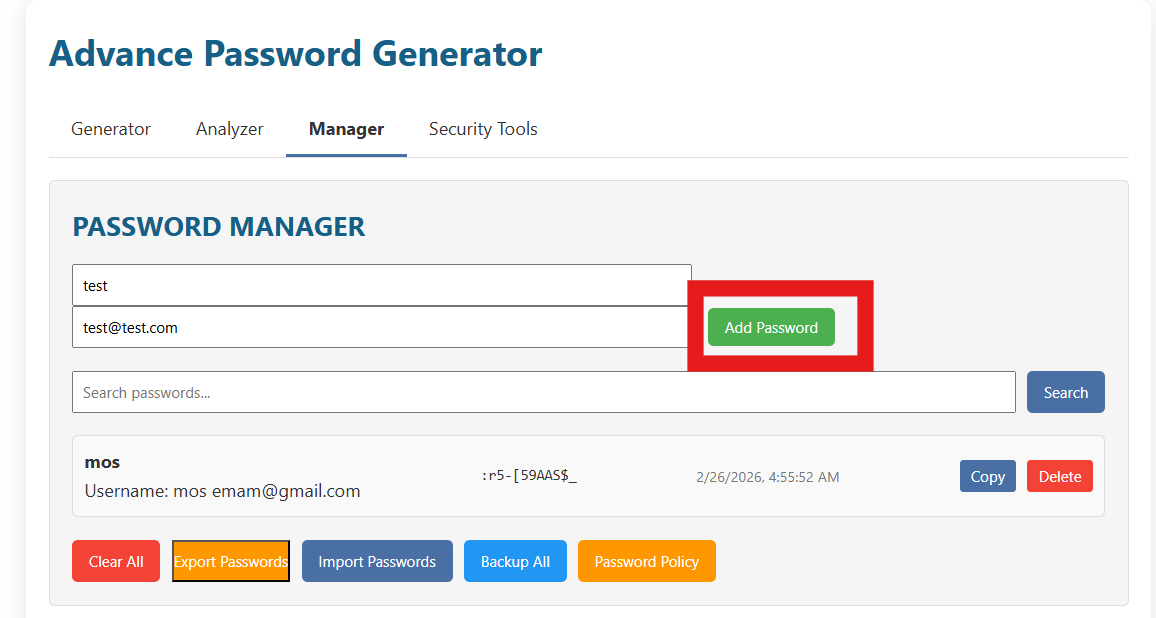
6.2 Searching and using saved passwords
Under the add fields, the Manager includes a search box and a Search button. Use it when your list grows:
- Type part of the password name or email into the search field.
- Click Search.
- Use the results list to locate the account quickly.
Each saved row typically shows:
- The password name (label).
- The username/email.
- The saved password (may appear masked or partially visible depending on the design).
- A timestamp (helpful to know when it was created).
- Copy and Delete buttons for quick actions.
6.3 Bulk actions: Clear, Export, Import, Backup, Policy
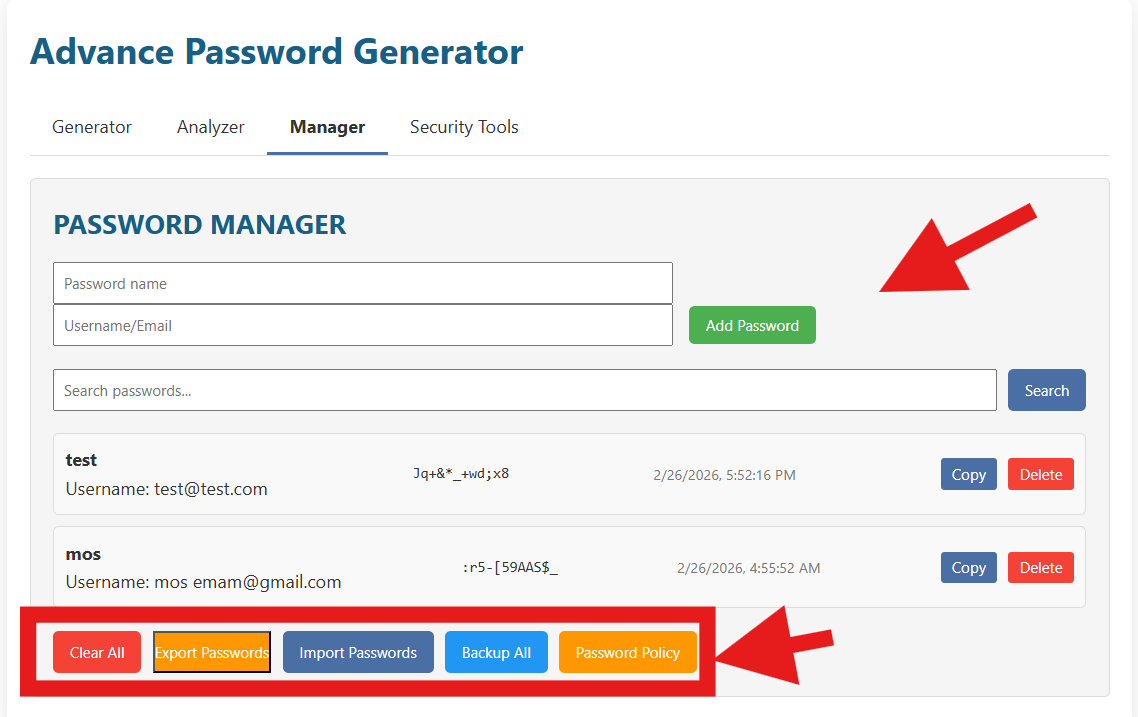
At the bottom of the Manager you have a row of important “maintenance” buttons:
- Clear All: Removes all saved entries. Use with caution.
- Export Passwords: Downloads or exports your saved list (format depends on your tool implementation).
- Import Passwords: Lets you bring in a previously exported list.
- Backup All: Creates a backup snapshot (useful before making changes).
- Password Policy: Helps you define rules (length/requirements) that you want to follow consistently.
6.4 A practical “everyday workflow” using Generator + Manager
- Go to Generator and set length to 16–20.
- Enable uppercase, lowercase, numbers, and special characters (unless the website blocks some).
- Click Generate Password (or Refresh).
- Click Save Password to send it to the Manager.
- In Manager, add a name + username/email.
- Click Add Password.
- When you need it later, search and click Copy.
7) Security Tools: Text Encryption & Hash Generator
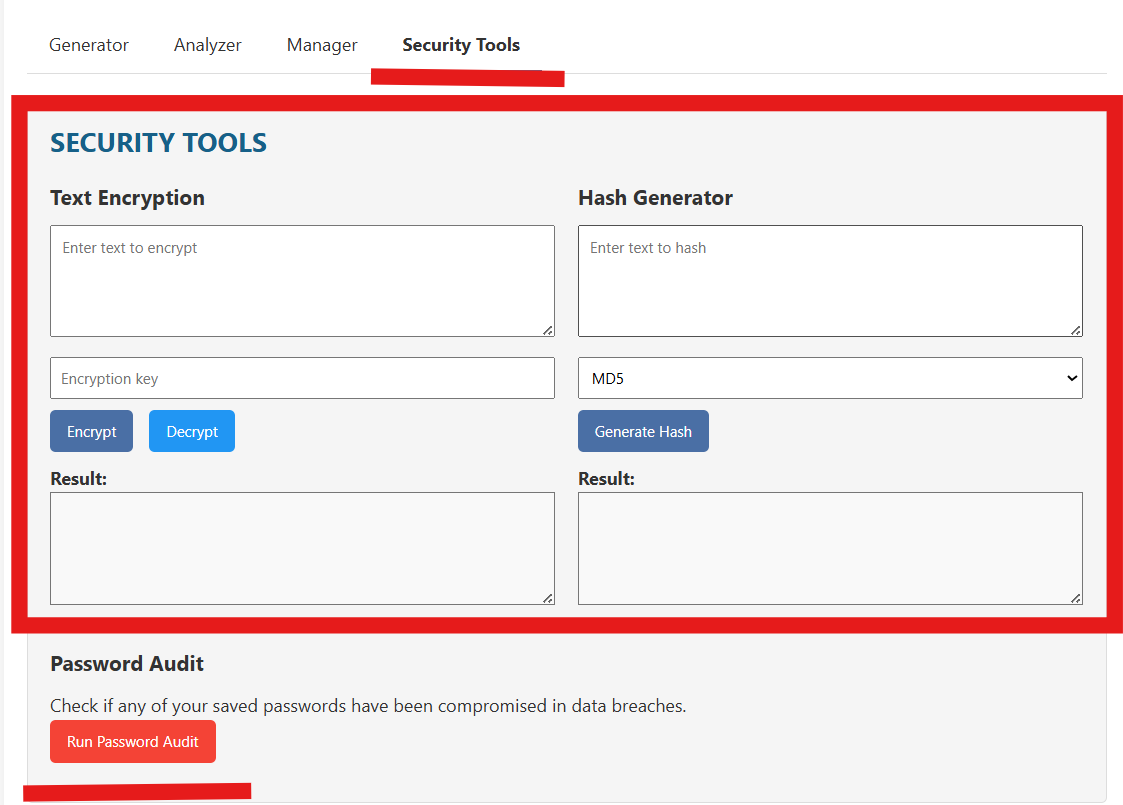
The Security Tools tab includes extra utilities that are useful for developers, students, and power users. In your screenshot, the page contains:
- Text Encryption (encrypt/decrypt with a key)
- Hash Generator (create a hash of any text, choosing the algorithm)
7.1 Text Encryption: how to use it safely
The Text Encryption panel typically includes:
- A large text box for the text you want to encrypt.
- An Encryption key field.
- Encrypt and Decrypt buttons.
- A “Result” area where output appears.
Here is a safe and practical way to use it:
- Type your message into “Enter text to encrypt”.
- Create a strong key (treat it like a password). Use at least 12–16 characters.
- Click Encrypt.
- Copy the encrypted result and store or share it.
- To read it later, paste the encrypted text back in and use the same key, then click Decrypt.
Good uses
- Encrypting a note before saving it somewhere (temporary privacy).
- Sharing a message through an insecure channel, while sending the key through a separate channel.
- Learning and testing basic encryption/decryption workflows.
Bad uses
- Storing your main password vault key here.
- Using a weak key like “1234” or “password”.
- Encrypting something but then sending the key along with it.
7.2 Hash Generator: what it’s for
On the right side, the Hash Generator lets you:
- Enter any text in “Enter text to hash”.
- Select an algorithm (in the screenshot, a dropdown shows MD5 as an option).
- Click Generate Hash.
- Copy the result from the output area.
Hashes are commonly used for:
- Integrity checks: verifying that data hasn’t changed.
- Fingerprints: identifying content by its digest.
- Development tasks: comparisons and testing.
8) Password Audit: Check if Saved Passwords May Be Compromised
Under the Security Tools page, your interface shows a Password Audit section with a button like Run Password Audit. The idea of an audit is simple:
- Data breaches happen all the time.
- When passwords leak, attackers try the same password on other websites (credential stuffing).
- If you reused a password even once, one leak can affect many accounts.
A password audit feature aims to warn you if any of your saved passwords might appear in known breach datasets (depending on how the audit is implemented). If the tool flags a password:
- Change that password immediately on the affected service.
- If you reused it anywhere else, change it everywhere.
- Enable two-factor authentication (2FA) if available.
- Generate a new random password with the Generator (16–20+ recommended).
- Save the new one in Manager and delete the old entry.
9) Best Practices: Password Rules That Actually Matter
Let’s keep this practical. Here are the rules that give you the biggest security improvement with the least effort. You can follow these rules using the toolkit you built on takmasaleh.com.
9.1 One password per account (no reuse)
Reuse is the #1 reason people get hacked. If you use the same password for email and social accounts, a single leak can lead to full account takeover. Use the Generator to create unique passwords, and the Manager to store them.
9.2 Make important passwords longer
For: Email, cloud storage, banking, hosting panels, WordPress admin, and social media, choose 16–24 characters if allowed. If a website limits length, use the maximum it allows.
9.3 Prefer passphrases when memorization is required
If you must type a password often, passphrases can be easier. Use Generate Passphrase and aim for a long phrase. Example pattern:
4–6 random words + optional numbers/symbols (depending on website rules)
Example style: "river-sunset-battery-mango-27!"
9.4 Avoid “human patterns”
Attackers guess patterns like:
Password123!,
Summer2026,
Mohamed@123,
keyboard walks like qwerty, and repeated characters like aaaa.
The Generator avoids these because it produces randomness.
9.5 Turn on 2FA for critical accounts
Even the best password is safer with 2FA. If your password is stolen, 2FA can still block login attempts. Use an authenticator app if possible.
9.6 Use “Exclude Similar” when typing manually
If you’re setting up a router, a TV app, or any device where typing is painful, enable Exclude Similar Characters and consider a slightly longer password to compensate.
9.7 Keep exports and backups secure
Export files can be dangerous if they leak. If you export or backup:
- Store the file in a secure location.
- Do not email it to yourself in plain form.
- If you must store it, encrypt it first (separate key).
- Delete temporary copies from downloads folders.
10) Troubleshooting & Common Questions
10.1 “This website doesn’t accept my generated password.”
Many websites have weird rules (no certain symbols, max length, or required characters). Fix it like this:
- Try disabling Special Characters first.
- If the site requires a symbol but rejects some, use Use Custom Character Set and include only accepted symbols.
- Adjust length to match the website’s maximum.
- Generate again and test.
10.2 “Copy works, but paste fails.”
- Ensure you’re pasting exactly once and not adding extra spaces.
- Some apps auto-capitalize the first letter on mobile — disable it in the keyboard settings when pasting.
- Try regenerating with Exclude Ambiguous enabled to avoid problematic characters.
10.3 “I forgot what a hash is.”
A hash is a one-way fingerprint of text. It’s used for verification and comparison, not for hiding text you need to read again. If you need reversible protection, use encryption instead.
10.4 “Should I store passwords in this Manager?”
The Manager is useful for organizing and quickly searching saved credentials inside your toolkit. For maximum security, many users also use a dedicated password manager app. If you rely on exports/backup files, always treat them as highly sensitive.
10.5 “What password length should I choose?”
- Basic accounts: 12–16 characters.
- Important accounts: 16–24 characters.
- Admin / critical systems: 20–32 characters (if supported).
11) Privacy & Safety Notes
Password tools handle sensitive data. Here’s the safest mindset:
- Only generate and analyze passwords on devices you trust (avoid public computers).
- Do not share screenshots that include real passwords.
- Be careful with export/backup files — they can expose everything if leaked.
- Use a strong master strategy: unique passwords + 2FA for critical accounts.
If you follow the workflow in this guide — generate strong unique passwords, analyze them, store them with care, and audit them — you’ll eliminate most of the common password risks that cause account takeovers.
Final Checklist (Quick Summary)
- Generator: Set length to 16–20+, choose character rules, generate, copy.
- Analyzer: Paste password, analyze stats and entropy, view hashes if needed.
- Manager: Save with a clear name + username/email; use search + copy later.
- Security Tools: Encrypt/decrypt notes with a strong key; generate hashes for verification tasks.
- Audit: Run password audit after imports or when you suspect a breach.